Settings Guide
Basic Settings
1. Format Settings
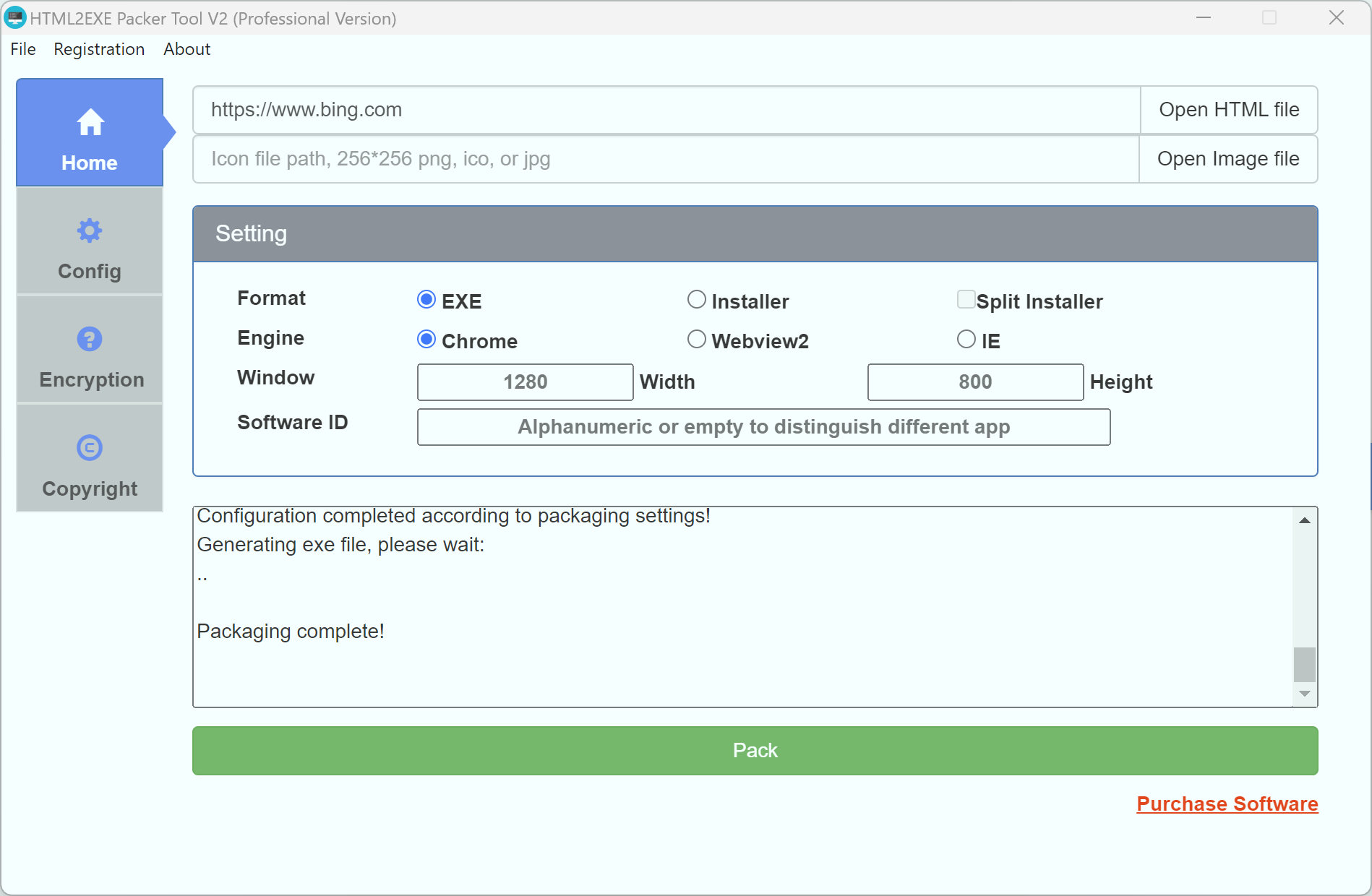
You can choose to package a portable EXE or an installer package.
EXE: Generates a single standalone EXE file that can run directly without installation.
Installer: Users need to install the application after opening. After installation, an icon is created on the desktop and can be opened by double-clicking. If the file to be packaged is larger than 2GB, you can check the Split installer option to ensure the packaged file is generated correctly.
2. Engine Settings
- Chrome: By default, Chrome kernel is used for packaging, supporting the latest browser features with best compatibility
- WebView2: Uses the built-in WebView2 kernel from Windows, supports more new features, and has a smaller file size
- IE: You can choose to use IE kernel, making the packaged file more compact
3. Window Settings
Width and height are used to set the initial size of the window. The default width is 1280px and height is 800px.
4. Software ID
The Software ID is used to distinguish different applications and can contain letters or numbers. Applications with the same Software ID will overwrite each other when installed as an installer package. If activation code is enabled during packaging, applications with the same Software ID will share the same activation code.
Advanced Settings
1. Full Screen
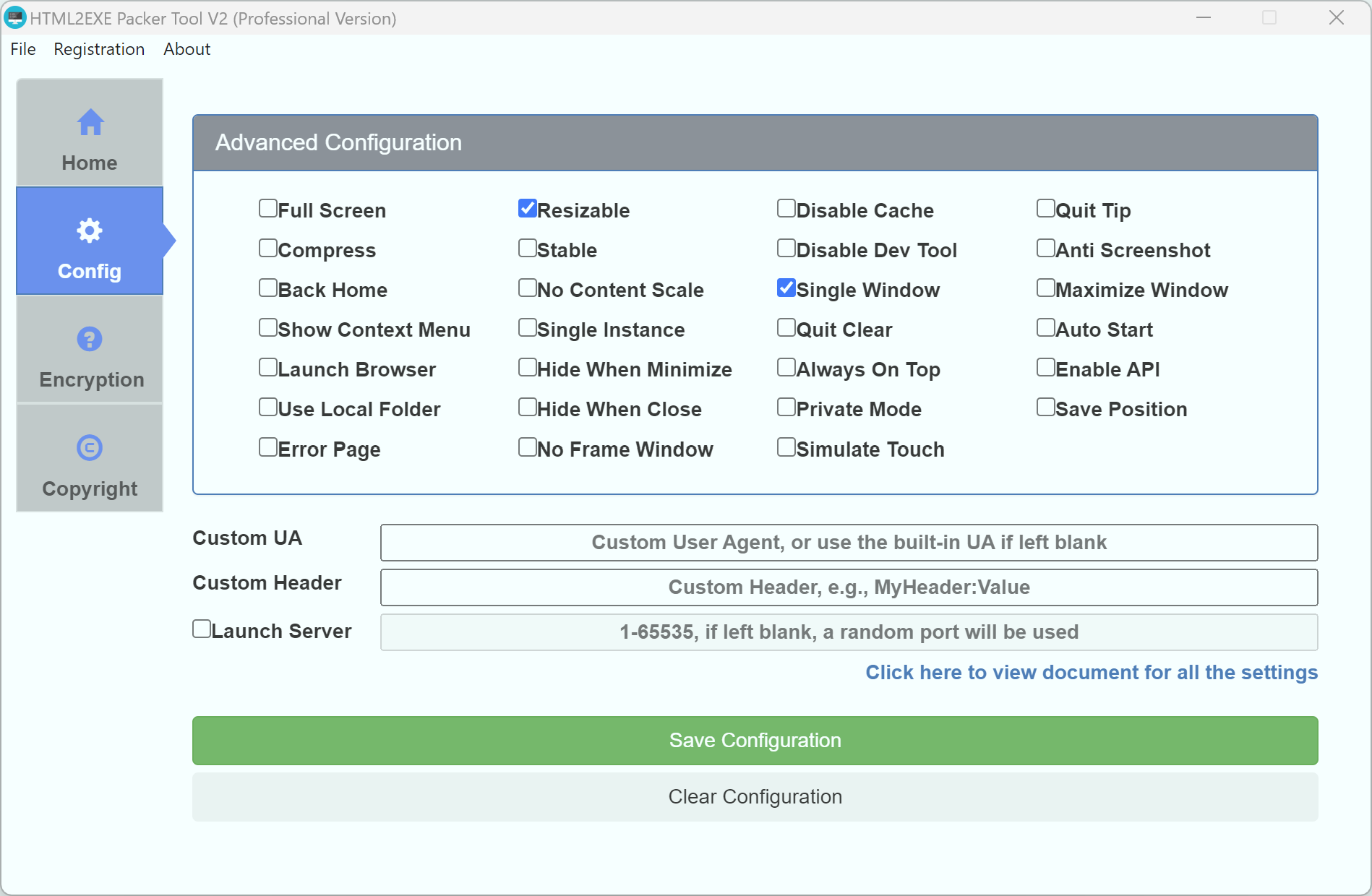
You can check the fullscreen option to make the packaged EXE automatically enter fullscreen mode on startup.
2. Resizable
After checking the resize option, the packaged software window can be dragged to zoom in and out. If you don't check this option, the window cannot be resized.
3. Disable Cache
By default, the software caches loaded resources to speed up opening. After checking this option, caching is disabled. It's recommended to check this option when packaging frequently updated URLs to ensure the website updates are loaded.
4. Quit Tip
After checking the exit prompt option, the packaged EXE will display a confirmation dialog before closing, asking whether you want to close.
5. Compress
Check this option to compress the generated EXE file.
Checking this option will affect the startup and running performance of the EXE, and some systems may encounter issues opening the file. Use this option with caution.
6. Stable
If the packaged file is too large and some elements fail to load or load with errors, please check this option.
Checking this option will affect performance. If normal packaging works fine, please don't check this option.
7. Disable Dev Tool
By default, pressing F12 in the packaged software opens the debugging tools, which can be used to check for errors. After checking this option, the debugging tools will be disabled, improving the security of the packaged EXE.
8. Anti Screenshot
After checking this option, the packaged EXE file will not be able to take screenshots when running. When third-party screenshot software tries to capture it, the EXE will display a black screen.
9. Back home
After checking this option, a "Return to Home" button will be added to the top-right corner of the packaged EXE. Clicking this button returns to the homepage.
10. No Content Scale
After checking this option, the webpage content in the packaged EXE will not allow scaling.
11. Single Window
After checking this option, the packaged EXE will not pop up windows, and all popup windows will open in the current window.
12. Maximize Window
After checking this option, the EXE will open in maximized mode by default.
13. Show Context Menu
After checking this option, the packaged EXE will have a right-click menu with options including "Refresh", "Return to Homepage", "Open Debugging Tools", "Clear Cache", etc.
14. Single Instance
After checking this option, the generated EXE can only be opened once. Even if opened multiple times, only one EXE instance will run.
15. Quit Clear
After checking this option, when exiting the EXE, user cache data will be automatically cleaned. It's recommended to check this option when the website updates frequently.
16. Auto Start
After checking this option, the EXE will automatically set itself to start on boot after being opened.
17. Launch Browser
After checking this option, all popup windows will open using the system default browser.
18. Hide when Minimize
After checking this option, minimizing the EXE will automatically hide it to the system tray, similar to a QQ icon.
19. Always on Top
After checking this option, the window will always remain on top.
20. Enable API
After checking this option, API support will be enabled, allowing you to call APIs provided by the EXE in JavaScript. See the subsequent documentation for supported APIs.
21. Use Local Folder
After checking this option, when packaging a local HTML project, the HTML project will not be embedded in the EXE file but will be placed in a PackerRoot directory at the same level as the EXE.
22. Hide When Close
After checking this option, clicking the close button will minimize the EXE to the tray.
23. Private Mode
After checking this option, each time you open the EXE, an independent storage space is used, and different login information won't interfere with each other.
24. Error Page
After checking this option, if the EXE cannot connect when opened, a prompt page will be displayed, allowing you to refresh or exit.
25. No Frame Window
After checking this option, the packaged EXE will have no window frame (no minimize or maximize buttons).
26. Simulate Touch
After checking this option, it will simulate mobile device touch event in html page
27. Custom UA
Custom User Agent (UA) can be used to simulate other browsers. For example, if you want the packaged EXE to simulate a 360 browser, you can enter a custom UA:
Mozilla/4.0(compatible;MSIE7.0;WindowsNT5.1;360SE)
28. Custom Header
You can configure custom header information, so all requests in the packaged webpage will include this header.
For example, you can set a Basic Auth header as follows:
Authorization: Basic QWxhZGRpbjpvcGVuIHNlc2FtZQ==
29. Enable Local Server
After checking this option, when packaging a local HTML project, a local server will be enabled, suitable for local pages that require a server to run.
30. Local Server Port Setting
You can enter a port number between 1-65535. If left blank, a random port will be used.
Encryption Settings
1. Use License
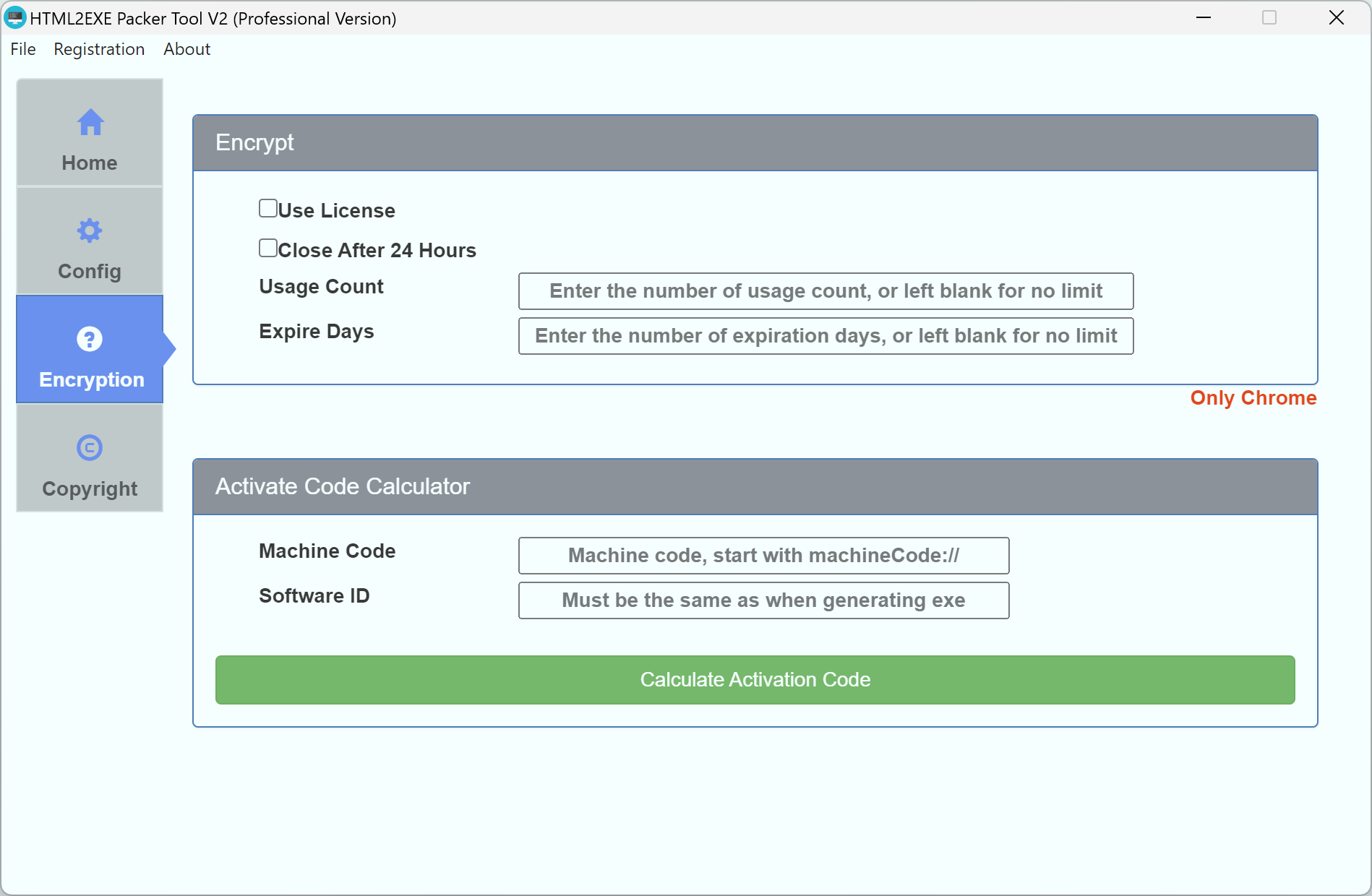
After checking this option, the generated EXE requires an activation code to open normally. When the EXE is opened for the first time, it will prompt for an activation code and allow users to copy the machine code. After obtaining the machine code, you can use the "Activation Code Calculator" to calculate the activation code. When calculating the activation code, you must enter the Software ID used during packaging. If no Software ID was entered during packaging, leave it blank.
2. Close After 24 Hours
After checking this option, the packaged software will automatically close after running for 24 hours.
3. Usage Count
You can set a number of days limit (integer). After setting this, the packaged EXE can only run within the limited time. Beyond the time limit, it will not open.
4. Expire Days
You can set a limit on the number of times (integer) the packaged EXE can be opened. After setting this, the EXE can only be opened a limited number of times. Beyond the opening limit, it will not open.
Copyright Settings
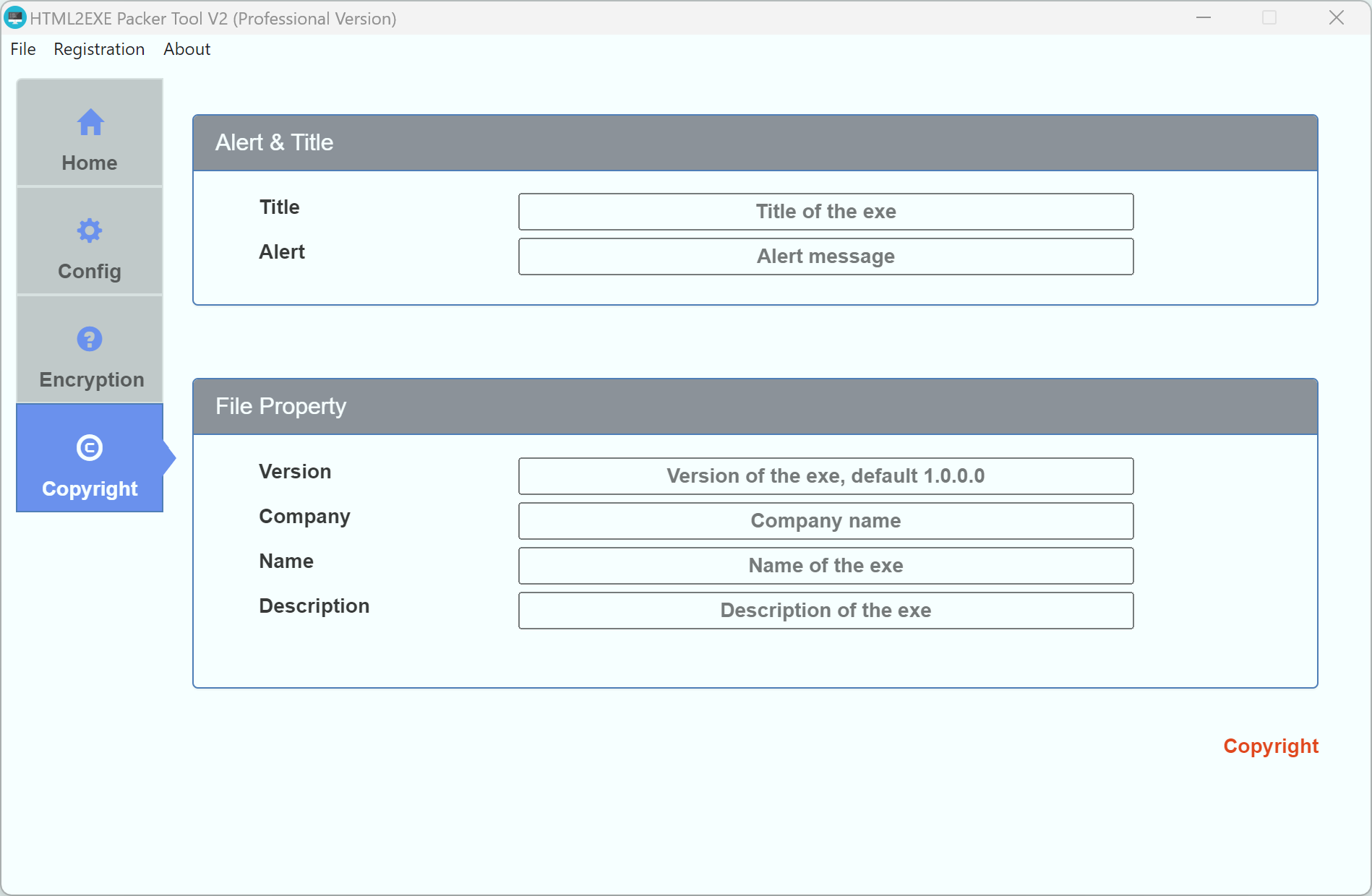
The Copyright Settings page allows you to set the property information of the generated EXE, such as the EXE version number, company name, etc.